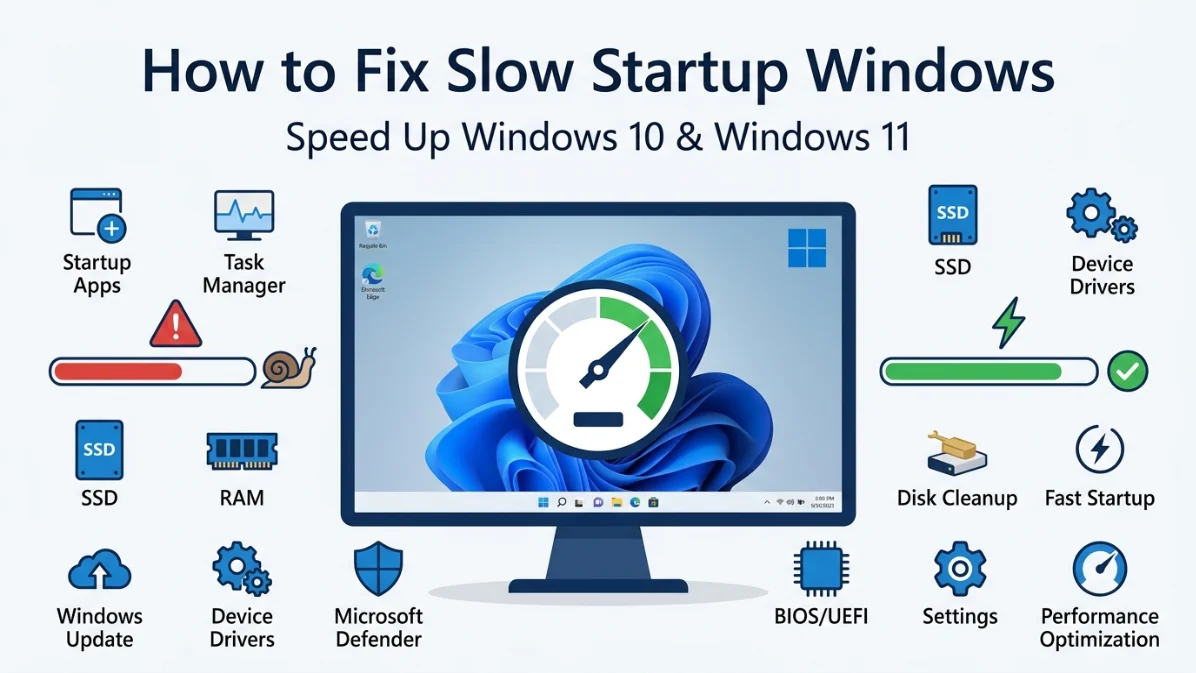
Have you ever pressed the power button on your computer and then waited… and waited… and waited?
A slow startup is one of the most frustrating Windows problems. Whether you’re using Windows 11 or Windows 10, a PC that takes several minutes to reach the desktop can waste valuable time every day. In many cases, the issue isn’t caused by failing hardware. Instead, unnecessary startup programs, outdated drivers, corrupted system files, or incorrect Windows settings are often responsible.
The good news is that most startup issues can be fixed without reinstalling Windows or replacing your computer.
In this comprehensive guide, you’ll learn how to fix slow startup Windows using proven troubleshooting methods recommended by Microsoft and IT professionals. We’ll cover everything from disabling startup apps and repairing system files to optimizing storage drives, updating drivers, and improving boot performance.
Whether your PC takes 30 seconds or 10 minutes to start, this guide will help you significantly reduce boot time.
Quick Answer
If your Windows computer starts slowly, the most common causes are:
- Too many startup applications
- Background services running at boot
- Outdated device drivers
- Corrupted Windows system files
- Low storage space
- Malware or viruses
- Aging HDD instead of SSD
- Windows Update issues
Disabling unnecessary startup programs, updating Windows, repairing corrupted files, and upgrading to an SSD are among the most effective ways to improve startup speed.
Why Does Windows Start Slowly?
Before fixing the problem, it’s important to understand what happens during startup.
Every time you turn on your computer, Windows performs dozens of tasks before displaying the desktop.
These include:
- Initializing hardware
- Loading the BIOS or UEFI firmware
- Detecting storage devices
- Starting the Windows Boot Manager
- Loading essential Windows system files
- Starting device drivers
- Launching Windows services
- Running startup applications
- Displaying the login screen
- Loading your user profile
- Opening background applications
If any one of these stages takes too long, your computer will appear slow.
Understanding the Windows Startup Process
Here’s a simplified overview of the Windows boot sequence.
| Startup Stage | What Happens |
|---|---|
| Power On | Hardware receives power |
| BIOS or UEFI | Hardware components are initialized |
| Boot Manager | Windows Boot Manager locates the operating system |
| Kernel Loading | Windows kernel and core drivers load into memory |
| Driver Initialization | Device drivers for graphics, storage, networking, and peripherals start |
| Windows Services | Essential services begin running |
| User Login | Login screen appears |
| Desktop Load | Startup apps and background programs launch |
Each step adds to the total boot time.
When multiple startup applications or services compete for CPU, RAM, and storage resources, Windows takes much longer to become usable.
Common Signs of Slow Startup Windows
Your PC may have a startup performance problem if you notice any of the following symptoms.
- Black screen after turning on the PC
- Long delay before the Windows logo appears
- Slow login screen
- Desktop icons take several minutes to load
- Taskbar freezes after login
- Mouse cursor keeps spinning
- Startup applications take a long time to open
- Disk usage stays at 100 percent immediately after login
- Fans run loudly while Windows loads
These signs often indicate software conflicts, excessive startup programs, or storage performance issues.
What Causes Slow Startup in Windows?
Many different factors can increase startup time.
Let’s examine the most common ones.
1. Too Many Startup Programs
Every application configured to start automatically increases boot time.
Examples include:
- Cloud storage software
- Messaging applications
- Printer utilities
- RGB control software
- Game launchers
- Music apps
- VPN software
Some computers have more than 30 startup applications enabled without the owner’s knowledge.
The more programs Windows loads during startup, the longer the boot process becomes.
2. Background Services
Windows runs hundreds of services.
Many are essential.
Others belong to software installed over time.
Examples include:
- Adobe services
- Printer monitoring
- Software updaters
- Backup applications
- Third party antivirus programs
- Cloud synchronization services
Too many background services consume CPU resources and increase startup time.
3. Slow Hard Disk Drive (HDD)
Traditional hard drives are significantly slower than SSDs.
Average startup times:
| Storage Type | Average Boot Time |
|---|---|
| HDD | 60 to 180 seconds |
| SATA SSD | 15 to 35 seconds |
| NVMe SSD | 8 to 20 seconds |
If your computer still uses an HDD, upgrading to an SSD can produce the biggest improvement.
4. Corrupted System Files
Windows depends on thousands of system files during startup.
If any become damaged because of:
- Power failures
- Improper shutdowns
- Malware
- Failed Windows updates
- Disk errors
Startup can become extremely slow.
Fortunately, Windows includes built in repair tools such as:
- System File Checker (SFC)
- Deployment Image Servicing and Management (DISM)
We’ll explain how to use both later in this guide.
5. Outdated Device Drivers
Drivers allow Windows to communicate with hardware.
Common drivers include:
- Graphics drivers
- Storage controller drivers
- Audio drivers
- Network drivers
- Chipset drivers
Outdated or incompatible drivers may delay startup while Windows attempts to initialize hardware.
6. Windows Updates
Sometimes Windows updates temporarily increase startup time.
Possible reasons include:
- Installing updates during boot
- Updating drivers
- Configuring Windows features
- Repairing components
If your PC is only slow immediately after an update, startup performance often returns to normal after one or two restarts.
7. Malware and Viruses
Malicious software frequently launches automatically during startup.
Symptoms include:
- Unknown startup programs
- High CPU usage
- Constant disk activity
- Pop up advertisements
- Unexpected network traffic
Running a malware scan should always be part of startup troubleshooting.
8. Low Disk Space
Windows needs free storage for:
- Temporary files
- Virtual memory
- Updates
- Caching
- Startup optimization
If your drive is nearly full, startup speed can decrease significantly.
Experts generally recommend keeping at least 15 to 20 percent of your storage free.
How to Check Your Windows Boot Time
Before making changes, measure your current startup performance.
This helps you compare results after applying optimizations.
Method 1: Task Manager
- Press Ctrl + Shift + Esc.
- Open Task Manager.
- Select the Startup Apps tab.
- Look for Last BIOS Time in the upper right corner.
This number indicates how long your computer’s firmware took before Windows started loading.
For example:
| BIOS Time | Performance |
|---|---|
| Under 10 seconds | Excellent |
| 10 to 20 seconds | Good |
| 20 to 40 seconds | Average |
| Over 40 seconds | Needs optimization |
Keep in mind that BIOS time measures firmware initialization, not the complete Windows boot process.
Fix 1: Disable Unnecessary Startup Programs
One of the easiest and most effective ways to speed up Windows startup is to reduce the number of applications that launch automatically.
Step 1
Press:
Ctrl + Shift + Esc
to open Task Manager.
Step 2
Select the Startup Apps tab.
You’ll see a list of applications configured to start automatically.
Columns usually include:
- Name
- Publisher
- Status
- Startup impact
Step 3
Focus on programs marked as High Impact.
These consume the most startup resources.
Common examples include:
- Discord
- Steam
- Epic Games Launcher
- Spotify
- Microsoft Teams
- OneDrive (if you don’t need immediate syncing)
- Adobe Creative Cloud
- Zoom
- Skype
- Printer utilities
Step 4
Right click any unnecessary application and choose:
Disable
Disabling a startup app does not uninstall it. It simply prevents it from launching automatically when Windows starts.
Expert Tip: Leave security software, touchpad drivers, graphics drivers, audio services, and essential Microsoft processes enabled. Disabling critical system components can cause hardware features or security protections to stop working.
Fix 2: Remove Unnecessary Background Apps
Even after Windows reaches the desktop, many applications continue running in the background. These apps consume CPU, RAM, storage, and network resources, which can make your computer feel slow immediately after startup.
Common background apps include:
- Cloud storage software
- Messaging applications
- Printer utilities
- RGB lighting software
- Music streaming apps
- VPN clients
- Gaming launchers
- Auto updaters
Reducing unnecessary background activity helps Windows finish loading faster.
Disable Background Apps in Windows 11
- Open Settings.
- Select Apps.
- Click Installed Apps.
- Choose the application.
- Open Advanced Options if available.
- Change Background App Permissions to Never.
Disable Background Apps in Windows 10
- Open Settings.
- Select Privacy.
- Click Background Apps.
- Turn off apps you do not need running continuously.
Tip: Keep essential apps such as Microsoft Defender and hardware management utilities enabled.
Fix 3: Enable Fast Startup
Fast Startup is a Windows feature that combines a normal shutdown with hibernation to reduce boot time.
Instead of closing everything completely, Windows saves parts of the system state and reloads them during startup.
Benefits
- Faster boot time
- Reduced loading time
- Better startup performance on HDDs
- Noticeable improvement on older computers
How to Enable Fast Startup
- Open Control Panel.
- Click Power Options.
- Select Choose what the power buttons do.
- Click Change settings that are currently unavailable.
- Enable Turn on Fast Startup.
- Save the changes.
When Should You Disable Fast Startup?
Although Fast Startup improves boot speed, there are situations where disabling it is recommended.
Examples include:
- Dual boot systems
- Driver troubleshooting
- Hardware detection problems
- Wake from sleep issues
For most users, keeping Fast Startup enabled is the best choice.
Fix 4: Update Windows
Microsoft regularly releases updates that improve:
- Startup performance
- Driver compatibility
- Security
- Storage optimization
- System stability
Running an outdated version of Windows can increase boot time.
Check for Updates
- Open Settings.
- Select Windows Update.
- Click Check for Updates.
- Install all available updates.
- Restart the computer.
After major feature updates, Windows may take longer to start during the first one or two restarts. This is normal because Windows is completing installation tasks.
Fix 5: Update Device Drivers
Every hardware component relies on drivers during startup.
If a driver is outdated or corrupted, Windows may pause while trying to initialize the hardware.
Important drivers include:
- Graphics driver
- Chipset driver
- Storage controller
- Network adapter
- Audio driver
- Bluetooth driver
- WiFi driver
Update Drivers Using Device Manager
- Right click the Start button.
- Select Device Manager.
- Expand a hardware category.
- Right click the device.
- Choose Update Driver.
- Select Search automatically for drivers.
Which Drivers Matter Most?
| Driver | Startup Impact |
|---|---|
| Storage Controller | Very High |
| Chipset Driver | Very High |
| Graphics Driver | High |
| Network Driver | Medium |
| Audio Driver | Medium |
| Bluetooth Driver | Low |
Keeping these drivers updated helps Windows communicate with hardware more efficiently.
Fix 6: Repair Corrupted Windows System Files
Corrupted system files are a common reason for slow startup, failed updates, and random crashes.
Windows includes built in repair tools that can automatically detect and restore damaged files.
Run System File Checker (SFC)
System File Checker scans protected Windows files and replaces damaged versions.
Steps
- Search for Command Prompt.
- Run it as Administrator.
- Enter:
sfc /scannow- Wait until the scan finishes.
- Restart your computer.
Possible results include:
- No integrity violations found
- Corrupted files repaired
- Some files could not be repaired
If SFC cannot repair everything, use DISM next.
Run DISM
Deployment Image Servicing and Management repairs the Windows system image.
Open Command Prompt as Administrator and run:
DISM /Online /Cleanup-Image /RestoreHealthThis process may take several minutes.
Once it finishes, run:
sfc /scannowagain to repair any remaining corrupted files.
Fix 7: Scan for Malware
Malware often installs startup entries that automatically launch every time Windows starts.
Symptoms include:
- Very slow startup
- High CPU usage
- Constant disk activity
- Unknown startup programs
- Pop up advertisements
- Browser redirects
Scanning your computer can eliminate malicious software that affects startup performance.
Using Microsoft Defender
- Open Windows Security.
- Select Virus & Threat Protection.
- Click Scan Options.
- Choose Full Scan.
- Start the scan.
For suspected infections, run an Offline Scan, which checks the system before Windows fully loads.
Fix 8: Free Up Disk Space
Windows requires free storage for:
- Temporary files
- Updates
- Virtual memory
- System cache
- Startup optimization
If your system drive is nearly full, startup speed may decrease significantly.
Recommended Free Space
| Drive Size | Recommended Free Space |
|---|---|
| 256 GB | At least 40 GB |
| 512 GB | At least 75 GB |
| 1 TB | At least 150 GB |
Use Disk Cleanup
Disk Cleanup safely removes unnecessary files.
It can delete:
- Temporary files
- Windows Update cache
- Recycle Bin contents
- Delivery Optimization files
- Thumbnails
- System logs
Steps
- Search for Disk Cleanup.
- Select the system drive.
- Check the file categories you want to remove.
- Click Clean Up System Files for additional options.
- Confirm the cleanup.
Fix 9: Optimize Your Storage Drive
The type and condition of your storage drive play a major role in startup speed.
If You Use an HDD
Traditional hard drives become fragmented over time.
Defragmentation reorganizes data, allowing the drive to read files more efficiently.
Steps
- Search for Defragment and Optimize Drives.
- Select the HDD.
- Click Optimize.
Note: Defragment only traditional hard drives.
If You Use an SSD
Solid State Drives do not require traditional defragmentation.
Instead, Windows performs TRIM, which helps maintain SSD performance.
To verify optimization:
- Open Defragment and Optimize Drives.
- Select the SSD.
- Click Optimize.
Windows automatically performs the appropriate maintenance.
Fix 10: Reduce Startup Services
Windows starts many services automatically, but not all are necessary for every user.
Disabling nonessential third party services can reduce startup time.
Perform a Clean Boot
- Press Windows + R.
- Type:
msconfig- Press Enter.
- Open the Services tab.
- Check Hide all Microsoft services.
- Click Disable All.
- Restart the computer.
If startup improves, re enable services one at a time to identify the application causing the slowdown.
Warning: Never disable Microsoft services unless you fully understand their purpose.
Fix 11: Check Startup Impact in Task Manager
Task Manager provides a Startup Impact rating for each startup application.
| Startup Impact | Meaning |
|---|---|
| High | Uses significant CPU or disk resources during startup |
| Medium | Moderate effect on boot performance |
| Low | Minimal effect |
| Not Measured | Windows has not collected enough data |
Focus first on disabling applications with a High impact that you do not need immediately after signing in.
Fix 12: Restart Instead of Shutting Down Occasionally
If Fast Startup is enabled, a normal shutdown does not perform a complete system reset. Over time, cached processes or driver states can occasionally contribute to startup or performance issues.
Restarting the computer performs a full reboot, reloads drivers, and clears temporary system states.
A good practice is to restart your PC periodically, especially after installing updates, drivers, or new software.
Fix 13: Check Your Hard Drive for Errors
If your computer has bad sectors, file system errors, or storage corruption, Windows may take much longer to start. Disk errors can also cause applications to freeze, unexpected crashes, or files to become inaccessible.
Windows includes a built in utility called Check Disk (CHKDSK) that scans the drive and repairs logical file system errors.
Run CHKDSK
- Search for Command Prompt.
- Right click it and choose Run as administrator.
- Type the following command:
chkdsk C: /f /rReplace C: with the correct drive letter if Windows is installed elsewhere.
If the drive is currently in use, Windows will ask whether you want to schedule the scan for the next restart. Type Y, press Enter, and restart your computer.
What CHKDSK Does
- Repairs file system errors
- Detects bad sectors
- Recovers readable data
- Improves storage reliability
- Helps prevent future boot problems
Note: A CHKDSK scan can take anywhere from a few minutes to several hours depending on the size and condition of the drive.
Fix 14: Check Your Drive Health
A failing storage drive is one of the most overlooked causes of slow startup.
Signs of a failing drive include:
- Clicking or grinding noises from an HDD
- Extremely slow file transfers
- Frequent blue screen errors
- Files becoming corrupted
- Random system freezes
- Very high disk usage during startup
Many modern drives support S.M.A.R.T. (Self Monitoring, Analysis, and Reporting Technology), which reports the drive’s health.
How to Check Drive Health
You can use:
- Windows Drive Health (Windows 11)
- CrystalDiskInfo
- Your SSD manufacturer’s diagnostic software
- Hard drive manufacturer utilities
Common Drive Health Status
| Health Status | Meaning |
|---|---|
| Good | Drive is healthy |
| Caution | Possible wear or bad sectors |
| Bad | Drive is failing and should be replaced immediately |
If your drive reports a failing status, back up your important files as soon as possible.
Fix 15: Upgrade from an HDD to an SSD
If your computer still uses a traditional hard disk drive (HDD), upgrading to a solid state drive (SSD) is often the single biggest improvement you can make.
An SSD has no moving parts and can access data much faster than an HDD.
Typical Startup Time Comparison
| Storage Type | Average Startup Time |
|---|---|
| 5400 RPM HDD | 90 to 180 seconds |
| 7200 RPM HDD | 60 to 120 seconds |
| SATA SSD | 15 to 35 seconds |
| NVMe SSD | 8 to 20 seconds |
In addition to faster startup, an SSD also improves:
- File transfers
- Application loading
- System responsiveness
- Windows updates
- Multitasking performance
For older computers, upgrading to an SSD often provides a greater performance boost than upgrading the processor.
Fix 16: Upgrade Your RAM
While RAM does not directly control boot speed, insufficient memory can slow down the startup process because Windows relies more heavily on the page file stored on the system drive.
Signs You Need More RAM
- Constant disk activity after login
- Slow multitasking
- Browser tabs reloading frequently
- Applications taking a long time to open
- System freezing during startup
Recommended RAM
| Usage | Recommended Memory |
|---|---|
| Basic computing | 8 GB |
| Office work | 16 GB |
| Gaming | 16 GB to 32 GB |
| Video editing | 32 GB or more |
If your computer has only 4 GB of RAM, upgrading to at least 8 GB can noticeably improve the overall Windows experience.
Fix 17: Update BIOS or UEFI Firmware
The BIOS or UEFI firmware initializes your hardware before Windows begins loading.
An outdated firmware version may:
- Increase BIOS time
- Cause hardware compatibility issues
- Slow storage detection
- Delay device initialization
Should You Update BIOS?
Only update the BIOS if:
- The manufacturer recommends it
- You are experiencing compatibility problems
- Release notes mention performance improvements
- You are installing new hardware
Important
Updating BIOS incorrectly can make your computer unbootable.
Always follow your computer or motherboard manufacturer’s official instructions.
Fix 18: Review Event Viewer for Startup Errors
Windows records startup events that can help identify why your computer is booting slowly.
Open Event Viewer
- Press Windows + X.
- Select Event Viewer.
- Expand Applications and Services Logs.
- Navigate to:
Microsoft
Windows
Diagnostics Performance
Operational
Look for events with long startup durations or repeated warnings.
These logs often identify:
- Slow drivers
- Delayed services
- Startup application issues
- Hardware initialization problems
Fix 19: Use Reliability Monitor
Reliability Monitor provides a timeline of system events, crashes, driver failures, and application errors.
Open Reliability Monitor
- Search for Reliability Monitor.
- Select View Reliability History.
Review recent events for:
- Failed updates
- Driver crashes
- Application failures
- Hardware errors
- Windows crashes
Fixing these underlying issues can improve startup stability and performance.
Fix 20: Run Startup Repair
If Windows fails to start correctly or takes an unusually long time to boot after a crash or failed update, Startup Repair can automatically diagnose and fix common boot problems.
Access Startup Repair
- Open Settings.
- Go to System > Recovery.
- Select Advanced Startup.
- Click Restart Now.
- Choose Troubleshoot.
- Select Advanced Options.
- Click Startup Repair.
Windows will scan for startup problems and attempt automatic repairs.
Fix 21: Reset Windows (Last Resort)
If none of the previous solutions work and startup remains extremely slow, resetting Windows may resolve deep system issues.
Windows offers two reset options:
Keep My Files
This option:
- Reinstalls Windows
- Keeps personal files
- Removes installed applications
- Resets system settings
Remove Everything
This option performs a complete reinstall by removing:
- Personal files
- Applications
- Settings
Always back up important data before resetting Windows.
Windows 10 vs Windows 11 Startup Performance
Although Windows 10 and Windows 11 share many optimization techniques, there are some differences.
| Feature | Windows 10 | Windows 11 |
|---|---|---|
| Startup Apps Management | Yes | Yes |
| Fast Startup | Yes | Yes |
| Storage Sense | Yes | Improved |
| Windows Security | Yes | Improved |
| SSD Optimization | Yes | Improved |
| Background App Controls | Basic | More Advanced |
| Drive Health Monitoring | Limited | Built in for supported devices |
Both operating systems benefit from regular updates, clean startup configurations, and healthy storage devices.
Common Mistakes That Slow Windows Startup
Avoid these common errors when trying to improve boot performance.
- Installing too many startup applications
- Ignoring Windows updates
- Never restarting the computer
- Running with very little free disk space
- Using outdated drivers
- Installing multiple antivirus programs
- Disabling essential Windows services
- Ignoring failing storage devices
- Skipping malware scans
- Delaying SSD upgrades on older systems
Expert Tips to Keep Windows Startup Fast
Follow these best practices to maintain good startup performance over time.
- Review startup applications every few months.
- Keep Windows and drivers updated.
- Maintain at least 15 to 20 percent free storage.
- Run Microsoft Defender scans regularly.
- Remove software you no longer use.
- Restart your computer periodically instead of always shutting it down.
- Monitor drive health.
- Upgrade to an SSD if you still use an HDD.
- Add more RAM if your workload has increased.
- Create regular backups before making major system changes.
Frequently Asked Questions
Why is my Windows computer so slow to start?
The most common reasons are too many startup applications, outdated drivers, low disk space, malware, corrupted system files, or a traditional HDD. Identifying and addressing these issues can significantly reduce startup time.
Does disabling startup apps make Windows faster?
Yes. Disabling unnecessary startup applications reduces the workload during boot, allowing Windows to reach the desktop more quickly and improving responsiveness after login.
Is Fast Startup safe?
Yes. Fast Startup is safe for most users and usually reduces boot time. However, it may cause issues on some dual boot systems or with specific hardware configurations.
How long should Windows take to boot?
Typical boot times vary depending on hardware.
| Storage | Expected Boot Time |
|---|---|
| NVMe SSD | 8 to 20 seconds |
| SATA SSD | 15 to 35 seconds |
| HDD | 60 to 180 seconds |
Older computers or systems with many startup programs may take longer.
Should I upgrade RAM or SSD first?
If your computer still uses a hard disk drive, upgrading to an SSD usually provides the greatest improvement in startup speed and overall performance. If you already have an SSD but frequently run out of memory while multitasking, adding more RAM may be the better investment.
Can malware cause slow startup?
Yes. Malware often adds startup entries, background services, or scheduled tasks that consume system resources. Running regular security scans helps detect and remove these threats.
Final Troubleshooting Checklist
Before considering a Windows reinstall, work through this checklist:
- Disable unnecessary startup applications.
- Remove unused software.
- Enable Fast Startup.
- Install the latest Windows updates.
- Update chipset, storage, and graphics drivers.
- Repair system files using SFC and DISM.
- Scan for malware with Microsoft Defender.
- Free up disk space.
- Optimize your HDD or ensure TRIM is running on your SSD.
- Check drive health and run CHKDSK.
- Review Event Viewer and Reliability Monitor for recurring errors.
- Perform a Clean Boot to identify software conflicts.
- Consider upgrading from an HDD to an SSD.
- Add more RAM if memory usage is consistently high.
- Use Startup Repair or reset Windows only if other methods fail.
Conclusion
A slow startup does not always mean your computer is outdated or needs to be replaced. In many cases, the problem is caused by software, unnecessary startup applications, outdated drivers, insufficient storage space, or corrupted system files. By systematically working through the fixes in this guide, you can identify the root cause and significantly improve boot performance.
For most users, the biggest improvements come from disabling unnecessary startup apps, keeping Windows updated, repairing system files, maintaining adequate free disk space, and upgrading from a traditional HDD to an SSD. Regular maintenance, including malware scans, driver updates, and periodic reviews of startup programs, helps ensure your Windows 10 or Windows 11 PC continues to boot quickly and run efficiently.
With the right combination of software optimization and, when necessary, targeted hardware upgrades, you can enjoy a faster, more responsive Windows experience every time you power on your computer.